48Hours Digital
Back to More
Ultra-Realistic Studio Portrait AI Image Prompt - 48hoursdigital.com
Views: 82
06 Oct 2026

This image Prompt Text

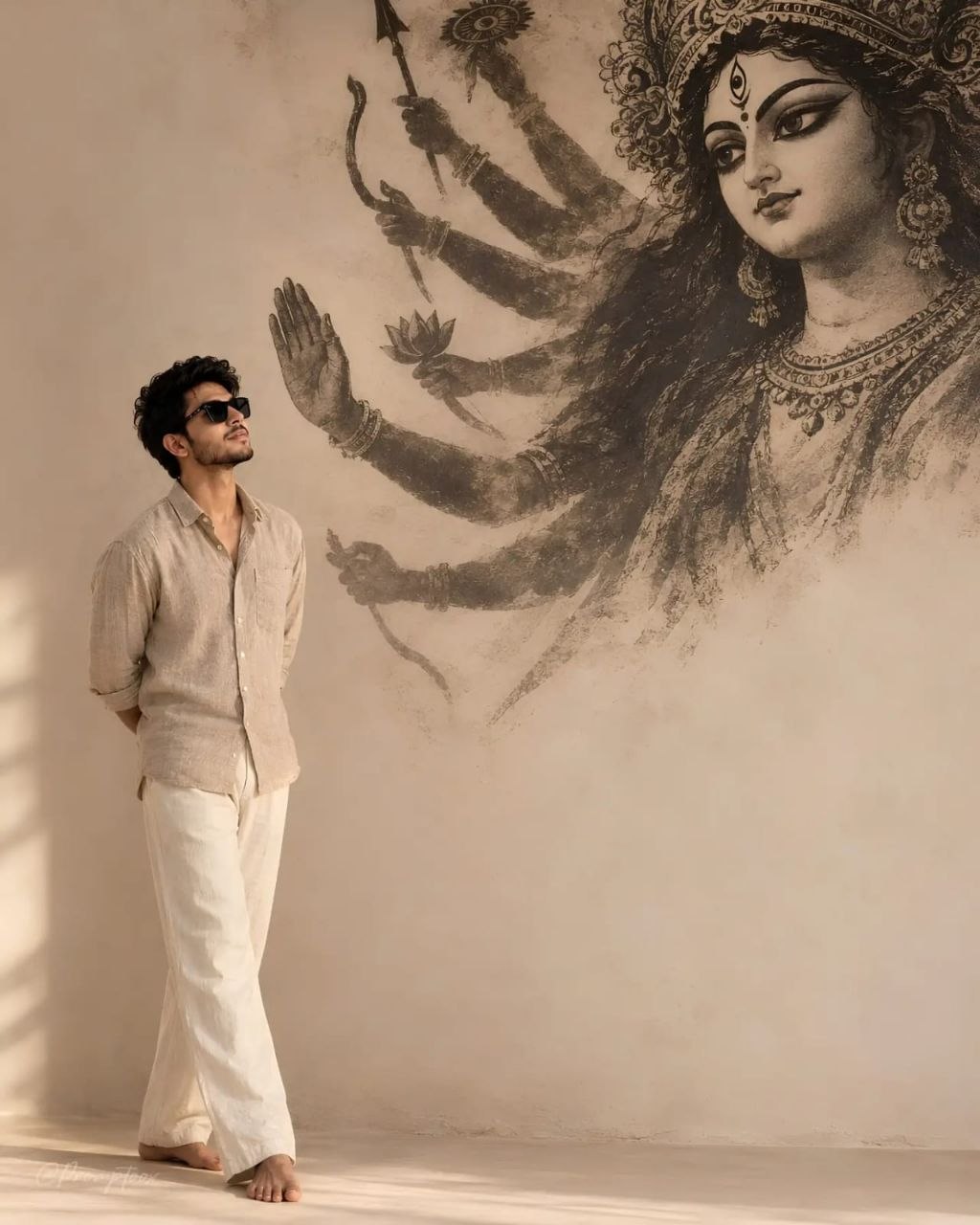
Create an ultra-realistic 4:5 premium devotional studio portrait using my uploaded image only as the strict facial identity reference. Do not copy the reference pose, expression, gaze, or body language. Place me on the far-left third, full body, with large negative space on the right. Use a warm cream-white plaster studio background. On the right, create a huge Durga Matha charcoal-and-ink mural, with her face high in the upper-right and multiple shadow arms extending diagonally toward me. One shadow hand appears above my shoulder in blessing. Pose: three-quarter profile, one foot forward, hands behind back. Gaze: looking upward toward Durga. Expression: peaceful subtle smile. Dusty-beige linen shirt, cream trousers, barefoot. Soft side lighting, 50mm DSLR look, premium editorial finish. Face same as reference image.
✨ Interactive tool

Customize This Image Prompt

Choose your preferred image settings. Your original prompt stays unchanged.

Detecting prompt type…

Actual resolution depends on the image generator.

The selected settings are added as instructions. Some generators may ignore unsupported options such as exact resolution or aspect ratio.

How to Use This AI Image Prompt

Use this prompt as a starting point. Results may vary by image generator, settings, and reference images.

  1. Choose an AI image generator suitable for the image you want to create.
  2. Click Copy Prompt above and paste the text into the generator.
  3. If supported, add a reference image when it helps communicate your intended result.
  4. Customize the subject, background, clothing, colours, mood, or other details.
  5. Generate the image. If needed, adjust a few details and try another variation.

Suggested tool: ChatGPT. Check that it supports the features you need.

Customization Tips

Personalize the prompt to match your idea. Keep its main concept and change only the details you need.

Subject

Describe exactly who or what should appear.

Background

Choose a location, environment, or backdrop.

Style and mood

Set the visual style, atmosphere, and colour palette.

Lighting and composition

Adjust lighting, camera angle, framing, and subject placement.

Image format

Select square, portrait, or landscape if the tool offers aspect-ratio settings.

Unwanted details

Use negative prompts if supported to exclude unwanted objects or visual defects.

Example: Customize a Portrait Prompt

For a portrait, you might choose these details:

Subject: a young musician

Background: a warmly lit recording studio

Style: realistic editorial photography

Lighting: soft window light

Composition: waist-up portrait, subject in sharp focus

Illustrative example only. Adapt these details to the actual prompt and your image generator.

Tips for Better Results

  • Use clear, specific descriptions instead of unrelated keywords.
  • Follow the generator's prompt limits, settings, and usage rules.
  • Try a few variations because AI results are not always identical.
  • Review the generated image before publishing or using it commercially.
Recommended Generator:
⚡ ChatGPT

Related Image Prompts

View All →
Related AI Prompt
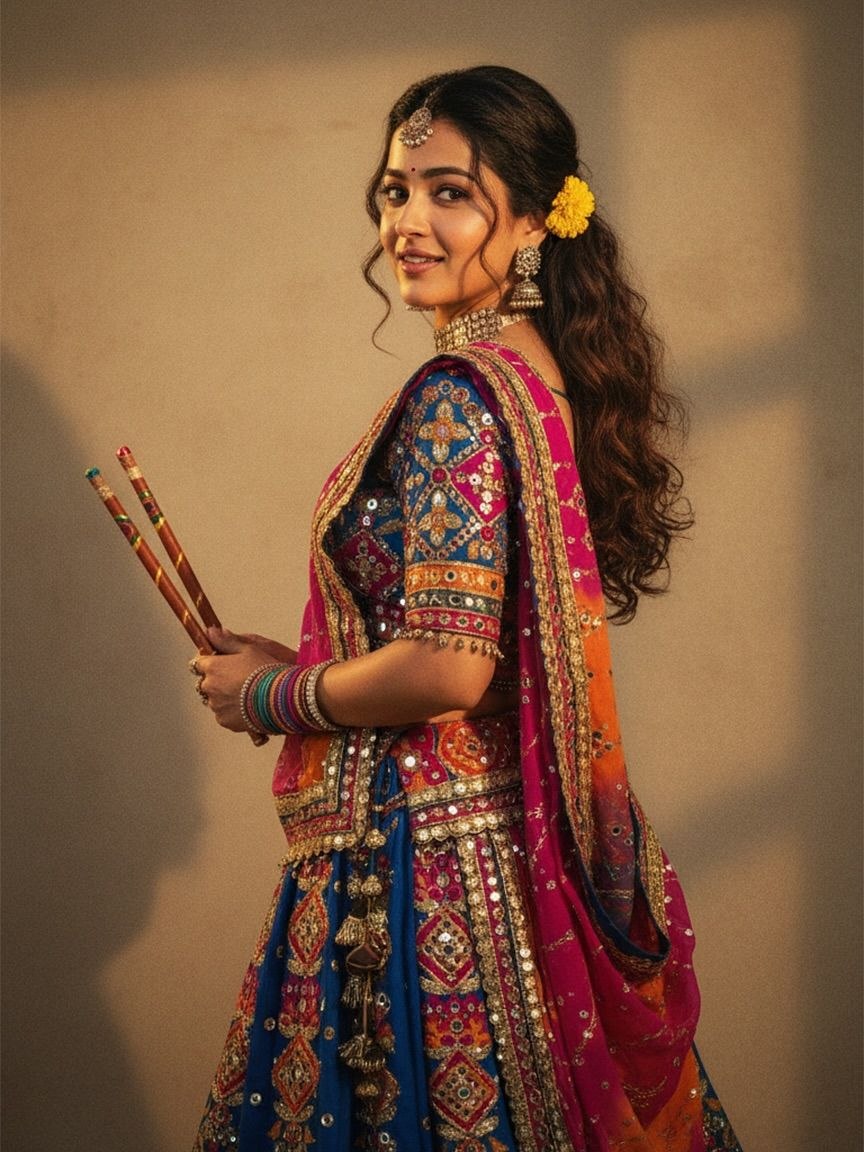
1. Open Gemini 2. Paste the Prompt Start with the original image ensuring the facial features remain unchanged Garba dress: overlay a digital image of a traditional garba dress choose a design with intricate embroidery and vibrant colors typical of the 90s aesthetic. Jewellery: add statement piece like a choker bangles and earrings opt for complement the dress Hairs: replace the original hair with a digital images of dark brown wavy curly long hair tick a small flower into the curly for a romantic touch. Background: use a solid wall background with deep shadows and contrast add a slight texture to the wall to enhance the vintage feel. Lighting: apply a warm golden tone to mimic the glow of sunset or golden hour ensure the lighting is dramatic to create a moody atmosphere Expression: keep the original expression intact maintaining the mood. Hand: keep the dandiya in hand Full pic back pose
View Prompt